
Quick answer
To save (or export) a frame from a video on iPhone, open the clip in Perfect Frame, step to the moment you want, compare nearby frames, then tap Save Photo. The app exports a clean still from the video file itself, so you get the full frame without player controls or screenshot cropping.
Before you start
You need a video already on your iPhone—Photos library, screen recording, or imported clip. Perfect Frame extracts a still from that file; it does not record new video or edit timelines.
Photos permission is requested when you save, not when you open the app. Picking a source video uses the system picker for the item you select.
Other ways to get a still on iPhone (and their limits)
- Screenshot of a paused video. Fast and built in, but you capture the screen, not the video frame: player controls, letterboxing, and screen-scaled resolution come along, and the pause point is wherever your finger landed.
- Built-in Photos options. Photos can trim a video, and for Live Photos you can choose a different key photo. For a regular video there is no general way to save one exact frame as a separate photo.
- A full video editor. Editors can export a frame, but you build a project and timeline just to get one image. That is a lot of steps when you only need a still.
- Perfect Frame. Built for this one job: pick a video, step frame by frame, compare neighbors, and save a clean photo. It does not edit or trim video.
For a broader look at turning clips into photos, see the video to photo guide.
Step-by-step
- Open Perfect Frame and tap Choose Video. The system Photos picker opens, showing the videos in your library.
- Select a video from the Photos picker. Wait for the clip to load in the viewer. You should see a frame from the video in the preview with the playback controls and thumbnail strip below it.
- Find the moment. Drag the playhead or tap Earlier / Later to move frame by frame until the preview shows the instant you want.
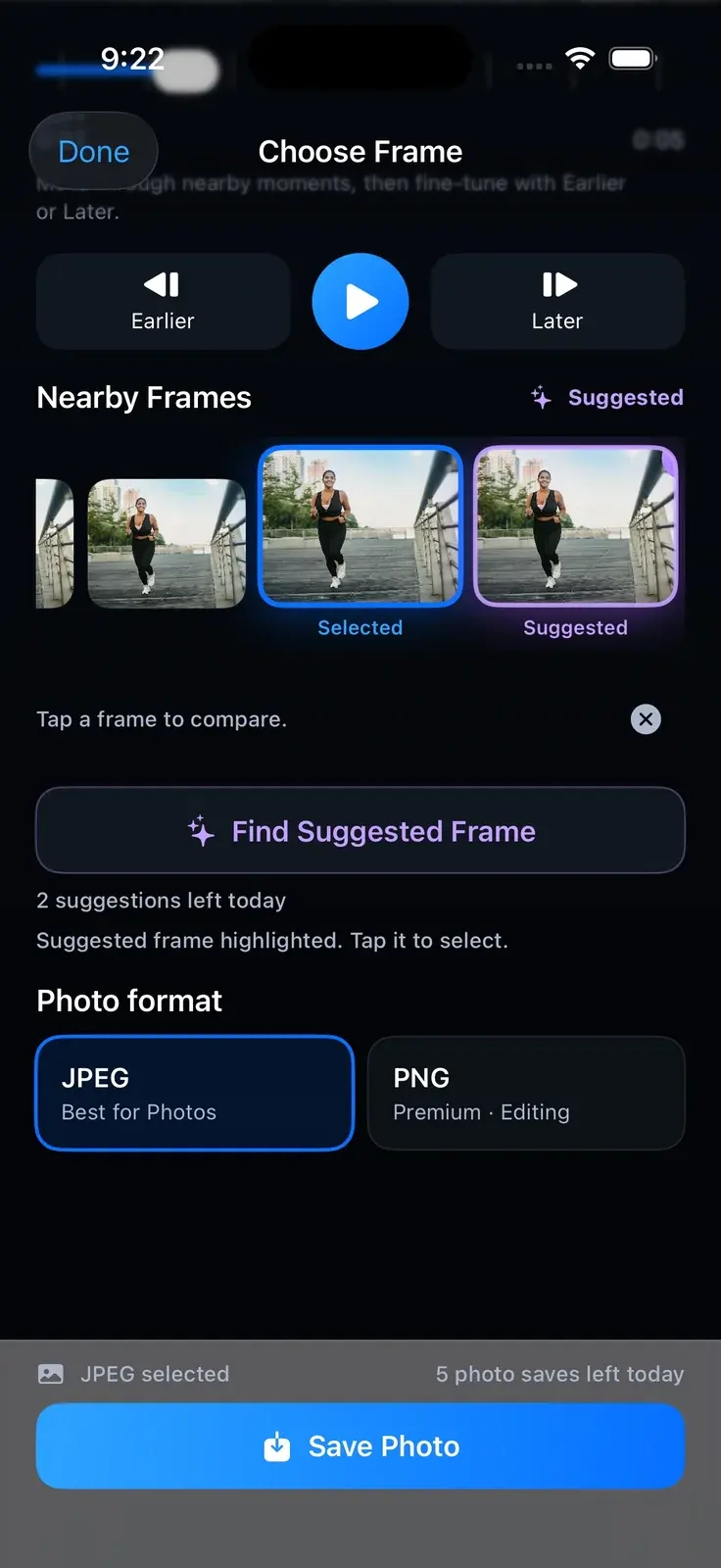
- Compare nearby frames. Check the thumbnail strip below the viewer. Tap any frame to preview it before committing. If the current frame looks soft, the sharper neighbor is often one step away. The preview updates to the frame you tap.
- Save the photo. Tap Save Photo to export a JPEG still to Photos or share it through the system sheet. The first time, iOS asks for permission to add photos; after that the still appears in your Photos library.
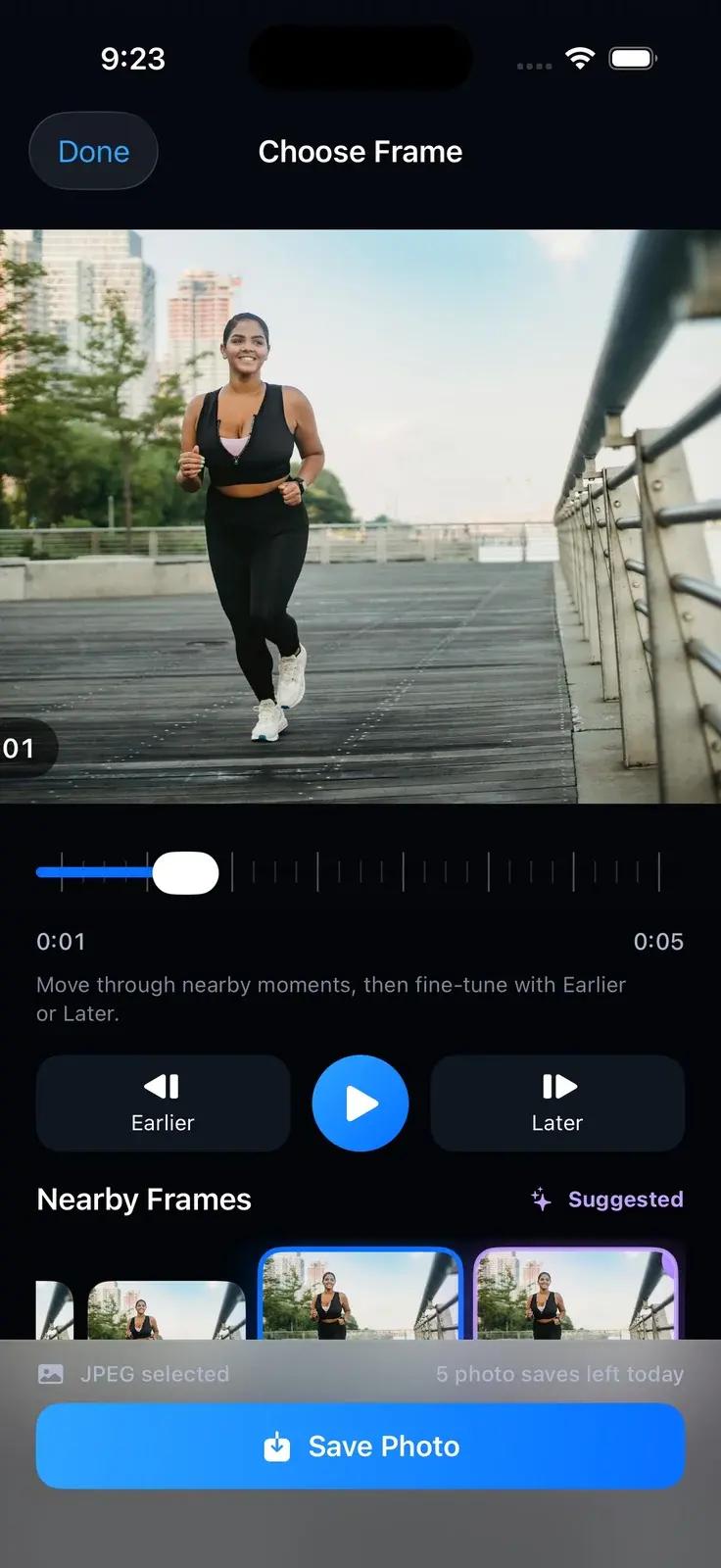
Tip for long clips: do not step through minutes of video one frame at a time. Drag the playhead to roughly the right scene first, then switch to Earlier / Later to land on the exact frame.
Suggested Frame (optional)
Tap Find Suggested Frame when you want on-device help picking a candidate. The app highlights one nearby frame based on local analysis. You can accept it or tap a different thumbnail before saving.
Saving frames from specific kinds of video
Screen recordings
A screen recording is already a video in Photos, so you can save a frame from it the same way. The still includes whatever was on screen at that moment, at the recording's resolution. Step a frame or two if an animation or scroll was mid-transition.
Slow-motion clips
Slo-mo video is recorded at a higher frame rate, so there are more frames between two moments to choose from. That makes it easier to catch a peak action, like a jump or a splash, on a sharp frame.
4K clips
A 4K video gives you a 4K still, which leaves room to crop later. Large files can take a moment to load, so scrub to the scene first, then step through nearby frames.
Videos received in Messages or AirDrop
Save the video to Photos first: in Messages, open the video and save it; AirDrop videos usually land in Photos automatically. Once it is in your library, it shows up in the Choose Video picker.
Troubleshooting
Why is my photo from a video blurry?
Step one frame earlier or later. Fast motion often blurs the frame you paused on while a neighbor stays sharp. Low light and a low-resolution source video also limit sharpness, and no export setting can add detail the camera did not record.
Should I screenshot the paused video?
A screenshot is fine for a rough reference, but it can include player controls and screen-scaled detail. Exporting the selected frame creates a clean photo from the source video instead.
The video does not appear in the picker
The picker shows your Photos library. Videos that only live in Messages, Files, or another app need to be saved to Photos first. If the video is stored in iCloud and not downloaded to the iPhone, it may take a moment to download before it loads, so check your connection.
Can I save more than one frame from the same video?
Yes. After saving, move to another moment and tap Save Photo again. Each export is a separate photo in your library. On the free tier, each save counts toward the limit of 5 JPEG saves per day.
Is there a limit on free saves?
The free tier includes 5 JPEG saves and 3 Suggested Frame scans per day. Both limits reset at midnight in your local time, and they count separately. Premium is a one-time unlock that removes both limits and adds HEIC export. There is no subscription.
Does the saved photo keep full video resolution?
The still is decoded from the source video at the selected timestamp, so it matches the resolution of that frame: a 4K video gives a 4K still, a 1080p video gives a 1080p still. It cannot add detail that was not recorded.
I need HEIC instead of JPEG
HEIC export is part of Premium, a one-time unlock for unlimited saves, HEIC output, and unlimited Suggested Frame scans. Open the Premium screen in the app to upgrade or restore a previous purchase.
Photos access appeared at save time
That is expected. Saving a still requires add-only Photos permission. Choosing a video in the picker does not require full library access. Reopening a video from Recent videos may ask for access to your library.
More help
Browse more intents on the guides index. See the Support page for Premium, restore purchases, and common questions. For iPhone-specific context, read extract a photo from a video on iPhone. Learn why nearby comparison matters in compare video frames.
Get Perfect Frame
Download the app to start saving frames from your videos on iPhone.
Download on the App StorePrivacy
Source videos stay on your device. Read the Privacy Policy for details. Return to home.